Connect Azure Storage
Connect an Azure Blob Storage account to your Deeplake organization using federated credentials. After setup, Deeplake tables read and write directly to your storage account. No master keys or long-lived secrets are stored on the Deeplake side.
Setup takes about 5 to 10 minutes. Most of that time is waiting for Azure RBAC to propagate.
Prerequisites
| Requirement | Notes |
|---|---|
| Azure subscription with a Storage Account (Blob service) | Where Deeplake tables will store data. |
| A container in that storage account | Each Deeplake table writes blobs under one container. |
| Permission to create a service principal in your tenant | Needs Application.ReadWrite.OwnedBy, or use the admin-consent URL in Step 2. |
| Permission to assign roles on the storage account | Needs Owner or User Access Administrator. |
| Your Azure tenant ID | UUID. Find it in the Portal home page, or run az account show --query tenantId -o tsv. |
Azure CLI (version 2.50 or later) is recommended but optional. The two CLI commands shown below have equivalent flows in the Azure Portal: an admin-consent URL for the service principal, and Access control (IAM) for the role assignment.
If you do not have permission to create service principals or grant roles, ask your Azure administrator to run Steps 2 and 4 with you.
Overview
The onboarding flow has six steps. Three happen in the Deeplake UI, two happen in your Azure tenant, and the last is an optional organization-wide setting.
1. Create credential                 (Deeplake UI)
2. Install service principal         (Azure: az ad sp create)
3. Submit tenant ID                  (Deeplake UI)
4. Grant Storage Blob Data Contributor (Azure: az role assignment create)
5. Submit storage details            (Deeplake UI)
6. Set as org default (optional)     (Deeplake UI)
After Step 5, the credential state moves to verified and is usable across your workspace.
1. Create the credential
In the Deeplake app, open Workspace → Managed Credentials, click Add credential, and choose Azure.
| Field | Example | Rules |
|---|---|---|
| Name | prod-azure-bloblake |
Internal label. Letters, digits, hyphens, underscores. |
| Base path | az://<storage_account>/<container> |
The container must already exist. An optional path prefix scopes tables under it: az://bloblake/lakedata/data. |
Azure naming rules are enforced on submit:
- Storage account: 3 to 24 characters, lowercase letters and digits only.
- Container: 3 to 63 characters, lowercase letters, digits, and hyphens. Must start with a letter or digit. No consecutive hyphens. Slashes belong to the prefix, never the container name.
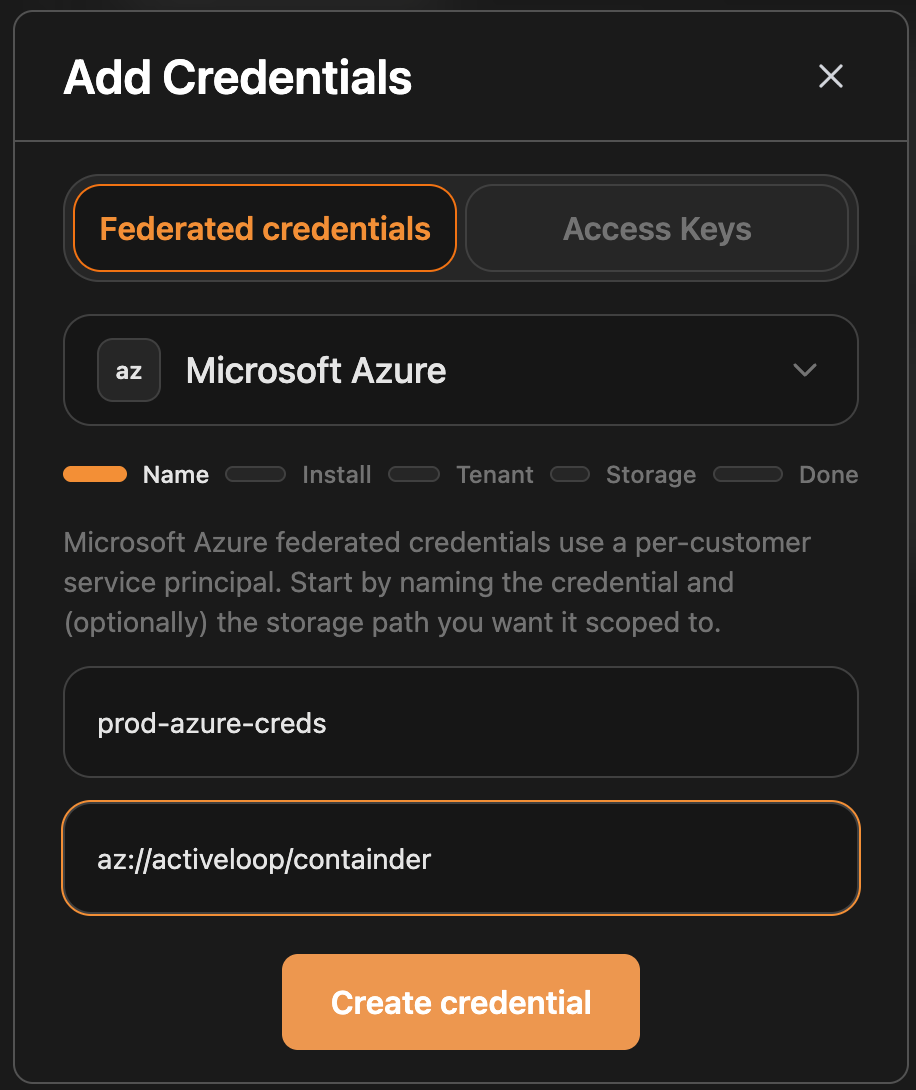
Click Create. The wizard advances to Step 2 and displays the install_command Deeplake generated.
Behind the scenes, Deeplake creates a multi-tenant Azure AD app registration in its own tenant, attaches a federated identity credential to it, and saves the credential row in draft state with an app_id that you use in the next step.
2. Install the service principal
The wizard shows this command, with <APP_ID> pre-filled:
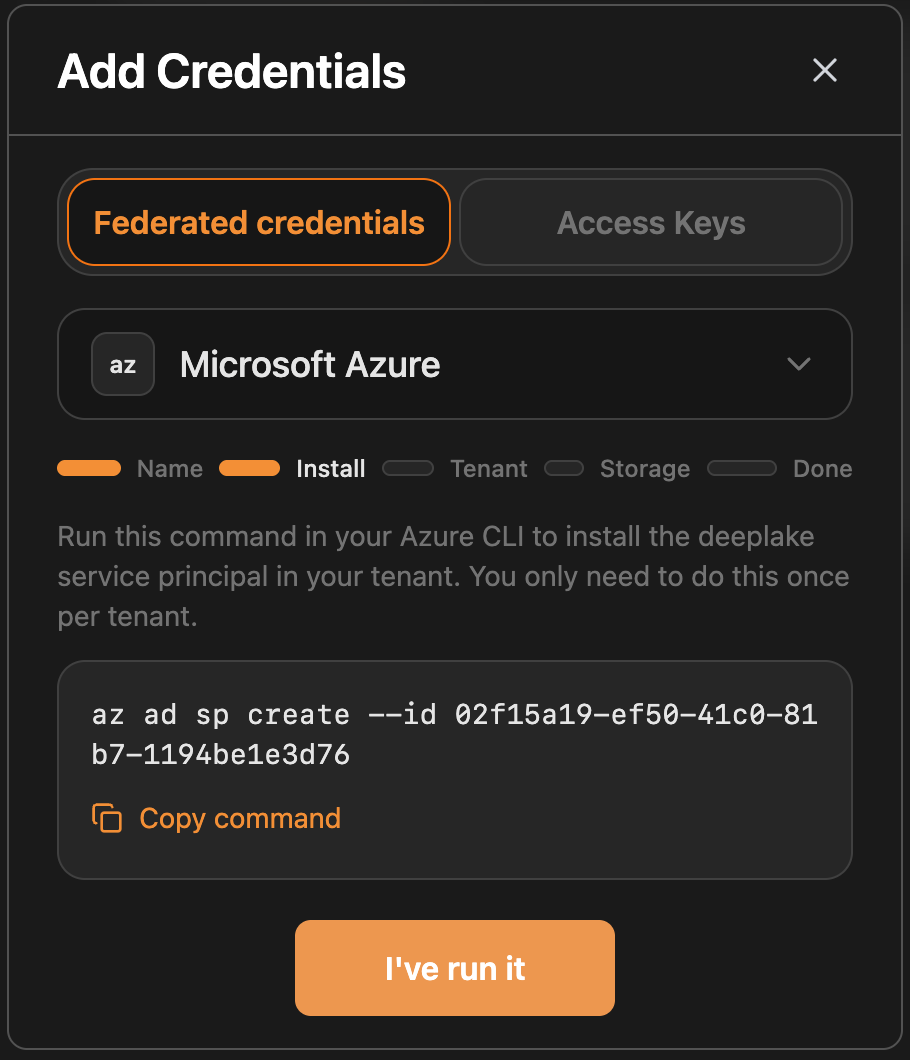
If your account cannot run az ad sp create, ask a tenant administrator to open the admin-consent URL instead. Azure auto-creates the service principal in one click:
Either path produces output similar to this:
The id field is the service principal object ID, which is distinct from the app ID. Save it. You will use it in Step 4 to grant the role. The wizard also displays it once Deeplake confirms the service principal is visible.
Click I've run it to continue.
3. Submit your tenant ID
Paste your tenant ID, for example ceeafc3d-f026-420b-a75b-9df0c970e6d1, and submit.
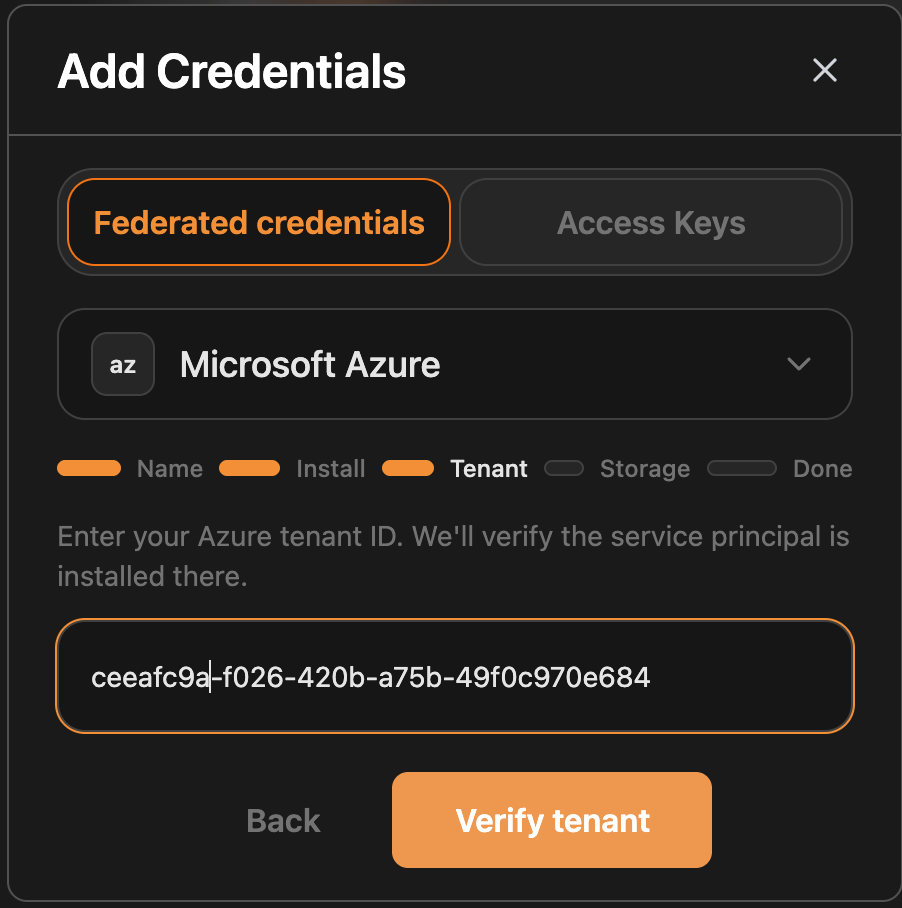
Deeplake polls Microsoft Graph in your tenant looking for the service principal you just installed. This usually completes in 5 to 30 seconds. There are three possible outcomes:
sp_verified: the wizard advances to Step 4 and the service principal object ID is shown.- "Couldn't find the service principal in your tenant": most often caused by running
az ad sp createin the wrong tenant, or by an administrator cancelling the consent URL. Verify withaz account show --query tenantIdand resubmit. - Polling continues for up to 10 minutes: indicates unusual AAD replication delays. The wizard resolves automatically once the service principal becomes visible.
4. Grant the role
The Deeplake service principal needs Storage Blob Data Contributor on the storage account.
- Role:
Storage Blob Data Contributor. TheReaderrole is not sufficient because Deeplake needs write access. - Scope: the storage account. Higher scopes work but are broader than necessary. Container scope is too narrow for some operations.
- Principal: the service principal object ID from Step 2.
The wizard pre-builds the exact command for you on the Step 5 screen. The two-command form below is what runs in your terminal:
# 1. Look up the storage account's Azure resource ID by name.
ACCOUNT_ID="$(az storage account show \
  --name <ACCOUNT_NAME> \
  --query id \
  --output tsv)"

# 2. Grant the role to the Deeplake service principal.
az role assignment create \
  --assignee-object-id <SP_OBJECT_ID> \
  --assignee-principal-type ServicePrincipal \
  --role "Storage Blob Data Contributor" \
  --scope "${ACCOUNT_ID}"
The first command exists because the role assignment requires the full Azure resource ID (/subscriptions/.../resourceGroups/.../storageAccounts/...). Constructing that path by hand requires knowing the subscription ID, resource group, and account name. az storage account show --query id reads it directly using just the account name.
To do the same in the Portal: open your storage account, go to Access control (IAM), then Add → Add role assignment. Select Storage Blob Data Contributor, then pick the service principal by name (deeplake-<your_credential_name>).
Azure RBAC takes 30 to 90 seconds to propagate to the storage data plane. If you click Verify in the wizard immediately after granting the role, the first probe may fail. Deeplake retries within a 5-minute window.
5. Submit storage details
Fill in the storage form in the wizard:
| Field | Where to find it | Validation |
|---|---|---|
| Subscription ID | Azure Portal, Subscriptions | UUID |
| Resource group | The RG holding your storage account | (none) |
| Storage account | The account name only, no https:// |
3 to 24 chars, lowercase letters and digits |
| Container name | The container portion of your base_path |
3 to 63 chars, lowercase letters, digits, hyphens |
If a value violates Azure's naming rules, Deeplake rejects the request with a precise error, for example storage account "Bloblake" contains invalid character "B".
The wizard displays the role-grant command and an Open in Azure Portal button above the Verify access button. Use them as a fallback if Step 4 was missed.
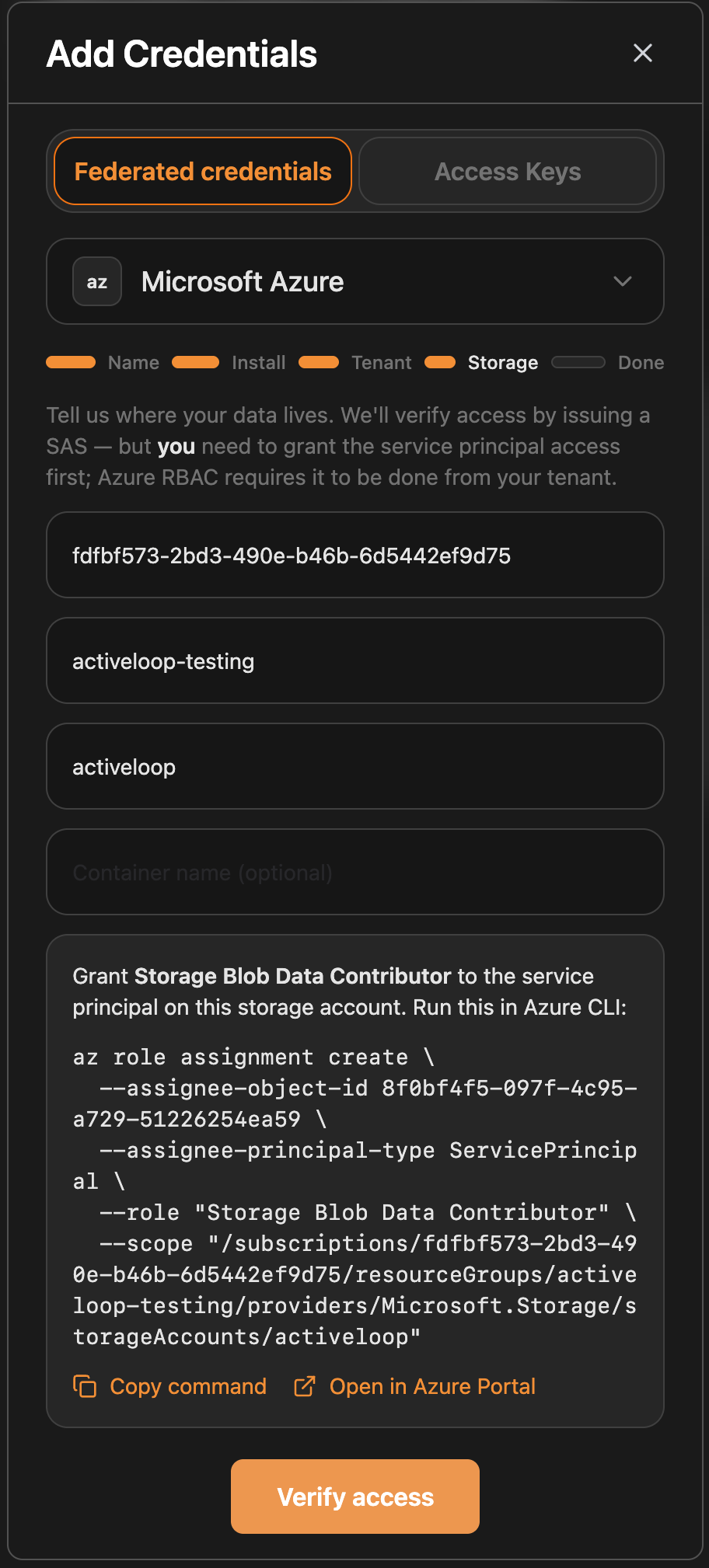
Click Verify access. Deeplake polls for up to 5 minutes while it confirms read and write access to your container. Possible outcomes:
- Credential connected. State is now
verified. The credential is ready to use. - Waiting for role propagation. Still within the RBAC propagation window.
- Role is not sufficient. The role was granted to a different service principal, or it is
Readerinstead ofContributor, or the scope is wrong. - Container not found or not readable. Either the container does not exist, or the service principal has no read access to it. Azure returns 404 for both cases.
- Storage account not found. The account does not exist, or DNS for
<account>.blob.core.windows.netis not resolving. - Timed out. The wizard offers Retry or Save anyway. Save anyway leaves the credential unverified but usable. Verification is retried on the first
/credscall.
For support tickets, the GET /credentials/{id} response exposes last_error_provider_error with the raw Azure error code (ContainerNotFound, AuthorizationPermissionMismatch, and others). Include it. It disambiguates cases that share the same user-facing message.
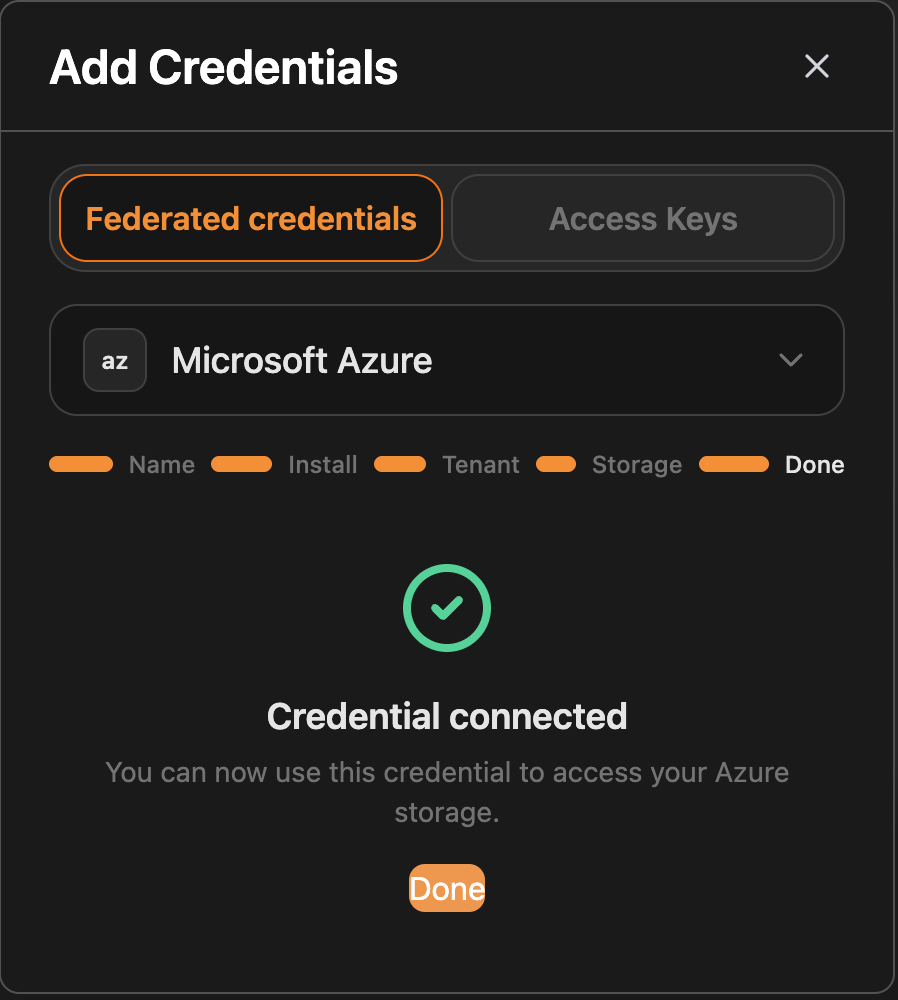
6. Set as org default (optional)
Toggle Set as org default on the success screen, or set it later from the credential list. Every workspace in the organization without its own credential link will use this credential.
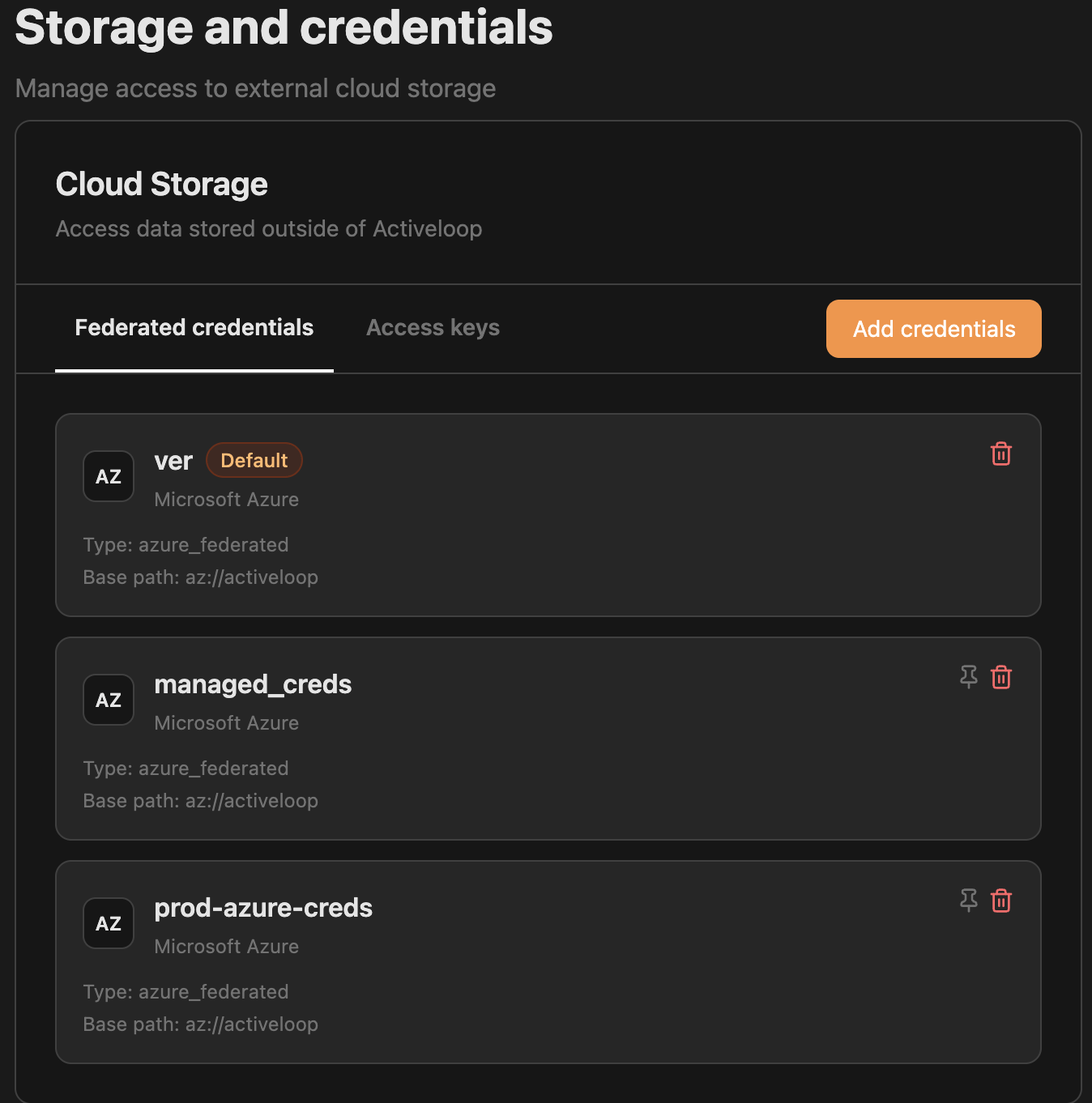
The resolution order is workspace credential, then org default, then environment default. Workspace-level links take precedence.
How credentials link to new workspaces
The workspace-creation wizard handles credential linking automatically:
- One verified credential in the org: that credential is linked to the new workspace automatically.
- Multiple verified credentials: the wizard prompts you to pick one. The selection is recorded as a per-workspace link.
- No credentials yet: the workspace falls back to the org default, or to the environment default if none is set.
Once a workspace contains at least one table, its credential link is locked. Re-pointing storage at a different credential after data has been written would silently change where new bytes land while leaving existing data unreachable on the new prefix. The API returns 400 with a clear message, and the UI hides the Change credential action.
Verify the connection
With the credential in verified state, create a test table from the SDK:
import deeplake

client = deeplake.Client(token="<your_api_token>", workspace_id="default")
client.query(
    'CREATE TABLE "smoke_test" ("id" BIGINT, "name" TEXT) USING deeplake',
    timeout=60,
)
client.query("INSERT INTO smoke_test VALUES (1, 'hello'), (2, 'world')", timeout=60)
print(client.query("SELECT * FROM smoke_test"))
# [{'id': 1, 'name': 'hello'}, {'id': 2, 'name': 'world'}]
If the round-trip succeeds, the credential is fully working. Blobs land in your container under <base_path>/<org_id>/<workspace_id>/smoke_test/.
Troubleshooting
"Couldn't find service principal" (Step 3)
az ad sp create ran in a different tenant than the one you submitted, or the service principal is not yet visible to Microsoft Graph.
- Confirm
az account show --query tenantId -o tsvmatches the tenant you entered. - Re-run
az ad sp create --id <APP_ID>. "Service principal already exists" is fine. - Resubmit the tenant ID.
"Container not found or not readable" (Step 5)
Either the container does not exist, or the service principal has no access to it. Azure returns 404 in both cases by design, so callers cannot probe for the existence of containers they do not have access to.
First, confirm the container exists:
If it is missing, create it:
If the container exists, the role was granted to the wrong principal. Check that the role assignment is on the service principal whose object ID is shown as azure.sp_object_id in the credential detail.
"Storage account not found" (Step 5)
The account does not exist, was deleted, or its blob endpoint is unreachable from Deeplake's network.
Re-check the spelling and resubmit.
"Role is not sufficient" (Step 5)
The role landed on a different principal, the role is Reader instead of Contributor, or the scope is too narrow.
az role assignment list \
  --assignee <SP_OBJECT_ID> \
  --all \
  --query '[].{role:roleDefinitionName, scope:scope}' \
  -o table
The output should include Storage Blob Data Contributor with a scope ending in .../storageAccounts/<your_account>. If the role is correct and the error persists for more than two minutes, this is RBAC propagation. Wait and resubmit.
400 Bad Request on storage account or container name
The submitted value violates Azure's naming rules. The two most common mistakes:
- Slashes in the container name (for example
mycontainer/some/prefix). Slashes belong to the prefix portion ofbase_path. - Uppercase or hyphens in the storage account name. Azure storage accounts must be all-lowercase letters and digits.
The error message names the field and the offending character.
"Azure Storage operation failed with an unexpected error"
An Azure error code that Deeplake has not yet classified. Capture the request ID from the error and contact support. The request ID lets us pull the raw Azure error code from logs.
Wizard timed out, keep the credential anyway
Click Save anyway on the timeout screen. The credential moves to unverified_saved. The next call to /creds attempts a SAS issuance and promotes the credential to verified on first success.
Reference
State machine
draft  -[POST /tenant]->  sp_pending  -[SP found]->  sp_verified
                              |                           |
                              |  (10m timeout)            |  POST /storage
                              v                           v
                            draft                    access_pending
                                                          |
                                                          +-[RBAC confirmed]->  verified
                                                          +-[terminal error]->  sp_verified
                                                          +-[5m timeout]
                                                                |
                                                                +-[Save anyway]->  unverified_saved
The wizard reads state from GET /organizations/{org_id}/credentials/{cred_id} and polls every 3 to 5 seconds during onboarding.
API endpoints
All endpoints require Authorization: Bearer <api_token> and X-Activeloop-Org-Id: <org_id>.
| Step | Endpoint | Body |
|---|---|---|
| 1 | POST /organizations/{org}/credentials |
{"name":"...","storage_type":"azure_federated","base_path":"az://..."} |
| 3 | POST /organizations/{org}/credentials/{id}/tenant |
{"tenant_id":"..."} |
| 5 | POST /organizations/{org}/credentials/{id}/storage |
{"subscription_id":"...","resource_group":"...","storage_account":"...","container_name":"..."} |
| Poll | GET /organizations/{org}/credentials/{id} |
(poll for state) |
| Save unverified | POST /organizations/{org}/credentials/{id}/save-unverified |
{} (after access-probe deadline) |
| Set default | PUT /organizations/{org}/credential |
{"credential_id":"..."} |
| Delete | DELETE /organizations/{org}/credentials/{id} |
(none) |
Data path after verification
SDK
  |  POST /api/org/{ws}/ds/{table}/creds
  v
Deeplake API
  |  (issues a 1-hour SAS scoped to your container)
  v
pg_deeplake / indra (storage layer)
  |  HTTPS PUT/GET with SAS
  v
<storage_account>.blob.core.windows.net/<container>/<org_id>/<workspace>/<table>/<blob>
Three properties of this flow:
- Blobs land in your storage account under
/<org_id>/<workspace_id>/<table_name>/. They are browsable in the Azure Portal. - The SAS Deeplake issues is short-lived (1 hour) and scoped to a single container.
- No long-lived secret is stored on the Deeplake side. The federation re-issues the SAS on demand using your service principal's identity.
Remove a credential
This removes the credential row immediately, removes any workspace links pointing at it (those workspaces fall back to the org default or environment default), and asynchronously deletes the AAD app registration on Deeplake's side.
Optional customer-side cleanup:
- Delete the service principal:
az ad sp delete --id <APP_ID>. Azure usually garbage-collects orphaned principals automatically. - Remove the role assignment:
az role assignment delete --assignee-object-id <SP_OBJECT_ID> --scope <storage account scope>. - Delete the data Deeplake wrote: it lives under
<base_path>/<org_id>/...in your container. Useaz storage blob delete-batch --account-name <ACCT> --source <container> --pattern '<prefix>/*'.
Table contents are not deleted automatically. The data remains in your Azure storage after the credential is removed.
Getting help
If the troubleshooting section does not resolve the issue:
- Note the request ID from any error message.
- Note the credential ID, visible in the wizard URL or the credential list.
- Contact Deeplake support with both.