Connect Google Cloud Storage
Connect a Google Cloud Storage bucket to your Deeplake organization. After setup, Deeplake tables read and write directly to your bucket. Deeplake mints short-lived OAuth tokens scoped to the bucket and stores no long-lived secret that cannot be rotated.
Deeplake supports two authentication paths. Pick the one that matches your security posture.
| Path | Choose when | You provide | Deeplake uses |
|---|---|---|---|
| Service Account Key | Fastest path. Works without any GCP federation setup. Acceptable when policy allows downloading and storing JSON service-account keys. | A standard GCP service-account JSON key file (gcloud iam service-accounts keys create). |
OAuth tokens minted from that key, scoped to cloud-platform, refreshed automatically. |
| Workload Identity Federation | Production-grade. No customer key, no customer-side service account, no impersonation grant to manage. Deeplake provisions a dedicated service account per credential in its own GCP project. | The bucket path only. | A per-credential service account that Deeplake creates in its own project. You grant that account Storage Object Admin on your bucket. Deeplake mints impersonated tokens via iamcredentials.googleapis.com:generateAccessToken. |
Both paths produce the same kind of bearer token at the storage layer. The difference is how the token is obtained.
Setup time is about 3 minutes for either path. Federated previously took longer because the customer had to create a service account and grant impersonation rights. That is no longer required.
Prerequisites
| Requirement | Notes |
|---|---|
| A GCP project with a Cloud Storage bucket | Where Deeplake tables will store data. |
| A bucket already created (regional or multi-region; standard storage class) | Each workspace writes objects under one bucket. |
| Permission to grant IAM roles on the bucket | For Service Account Key: also permission to create a service account in your project (roles/iam.serviceAccountAdmin). For Federated: just bucket-level role-grant permission (roles/storage.admin or equivalent). |
| Your GCP project ID | Short string like my-company-prod. From the GCP Console home page or gcloud config get-value project. |
gcloud CLI (version 460 or later) is recommended but optional. Each step also has an equivalent flow in the GCP Console.
If you are unsure which path to choose, start with Service Account Key. It works in every GCP project with zero one-time setup. You can switch to Federated later by creating a new credential and deleting the old one.
Overview
Open Workspace Settings -> Managed Credentials -> Add credential
                                   |
                                   v
                         Pick the storage type
                  +------------------------+--------------------+
                  | GCS (Service Account)  |   GCS Federated    |
                  +-----------+------------+----------+---------+
                              |                       |
              Upload SA key JSON              Submit name +
              + bucket path                   bucket path only
                              |                       |
                              v                       v
                Deeplake verifies access     Deeplake creates a
                              |              per-credential SA and
                              |              returns its email
                              |                       |
                              |                       v
                              |              Customer grants
                              |              Storage Object Admin
                              |              to that SA on bucket
                              +-----------+-----------+
                                          |
                                          v
                              State: verified
                                          |
                                          v
                          (Optional) Set as org default
1. Open the credentials wizard
In the Deeplake app, open your workspace and click Settings in the sidebar.
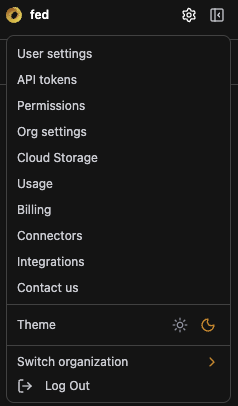
Scroll to Managed Credentials and click Add credential.
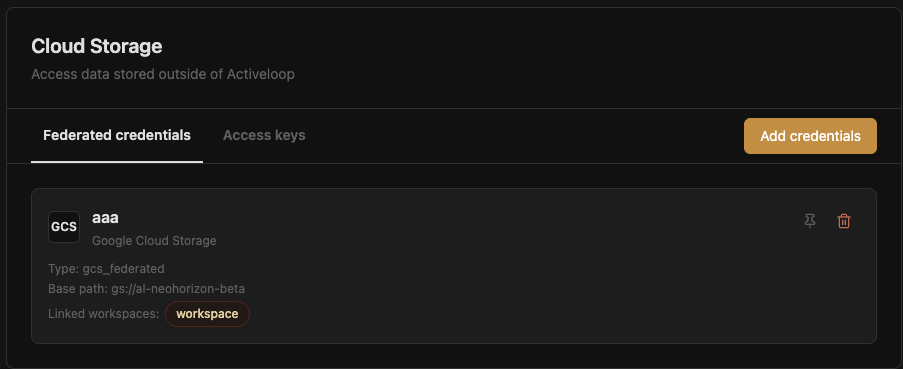
Pick your storage type:
- GCS (Service Account Key): fastest. Requires uploading a JSON key.
- GCS Federated: zero-key. Deeplake creates a dedicated service account for this credential in its own project.
The two flows are documented separately below.
Path A: Service Account Key
This path takes about 3 minutes. You provide a service-account JSON key with roles/storage.objectAdmin on your bucket. Deeplake stores the key encrypted at rest and uses it to mint short-lived OAuth tokens on every storage operation.
A1. Create a service account and grant bucket access
PROJECT_ID=$(gcloud config get-value project)
SA_NAME="deeplake-storage"

# Create the service account.
gcloud iam service-accounts create "${SA_NAME}" \
  --display-name="Deeplake managed storage"

# Grant Storage Object Admin on the bucket.
BUCKET_NAME="my-deeplake-bucket"
gcloud storage buckets add-iam-policy-binding \
  "gs://${BUCKET_NAME}" \
  --member="serviceAccount:${SA_NAME}@${PROJECT_ID}.iam.gserviceaccount.com" \
  --role="roles/storage.objectAdmin"
GCP Console equivalent: IAM & Admin → Service Accounts → Create service account, then Cloud Storage → your bucket → Permissions → Grant access. Select Storage Object Admin.
Deeplake writes table data and reads it back. The Storage Object Viewer role is not sufficient. CREATE TABLE and INSERT will fail.
A2. Generate a key for the service account
gcloud iam service-accounts keys create deeplake-sa-key.json \
  --iam-account="${SA_NAME}@${PROJECT_ID}.iam.gserviceaccount.com"
This creates deeplake-sa-key.json in your current directory. Treat it like a password. Anyone with this file can read and write the bucket.
A3. Fill in the wizard
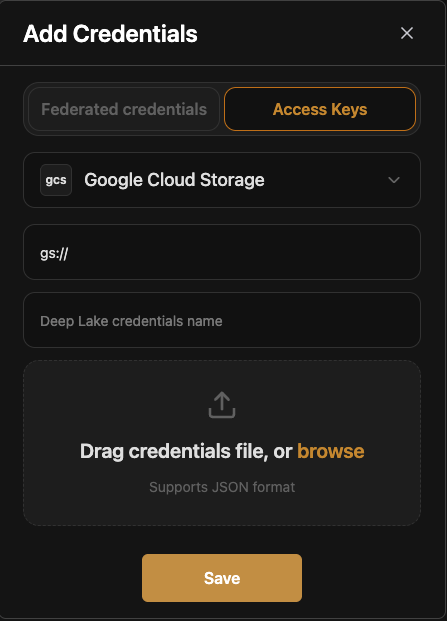
| Field | Example | Notes |
|---|---|---|
| Name | prod-gcs-storage |
Internal label. Letters, digits, hyphens, underscores. |
| Base path | gs://my-deeplake-bucket/lakedata |
Pattern: gs://, your bucket, optional /prefix. The bucket must exist; the prefix does not have to. |
| Service account JSON | (paste or upload deeplake-sa-key.json) |
Full contents of the key file from A2. Encrypted at rest with envelope encryption. |
Click Create. The wizard runs four checks:
- Validates JSON structure (
client_email,private_key, and other required fields). - Mints a test OAuth token using the key.
- Performs a probe write to
<base_path>/.deeplake_probe. - Marks the credential
verified.
GCP naming rules are enforced on submit:
- Bucket: 3 to 63 characters, lowercase letters, digits, hyphens, underscores, periods. Cannot start with
googor containgoogle. - The prefix portion of
base_pathaccepts any valid GCS object path.
If any check fails, the wizard displays a precise error. See Troubleshooting.
Path B: Workload Identity Federation
This path takes about 3 minutes on your side. You do not create a service account, you do not paste a federated principal string, and you do not grant impersonation rights. Deeplake creates a service account dedicated to this credential inside its own GCP project and returns the email. You grant that account bucket access on your end. Nothing else.
Before starting, confirm that the Deeplake operator has completed the one-time GCP setup for Workload Identity Federation in your deployment. This is operator-side only and is shared across all customers. No per-customer principal is exchanged.
B1. Fill in the credential form
In the Add Credentials dialog, leave the Federated credentials tab selected, pick Google Cloud Storage as the storage type, and fill in the bucket URI and a name.
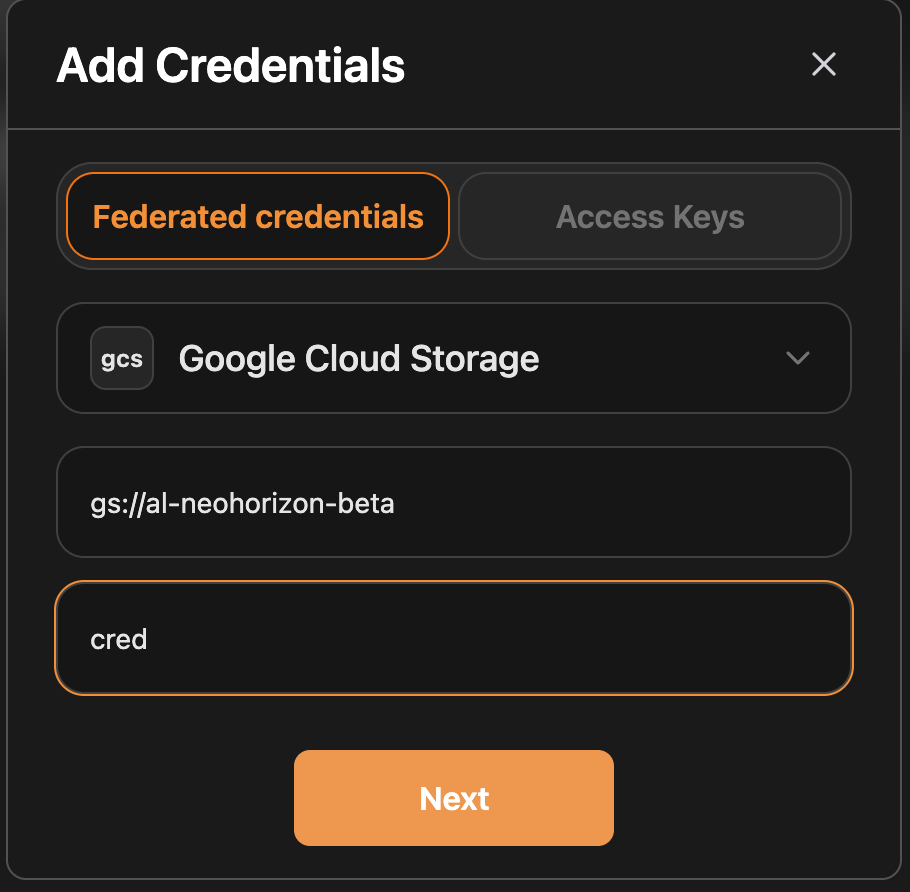
| Field | Example | Notes |
|---|---|---|
| Bucket URI | gs://my-deeplake-bucket |
The bucket Deeplake will read and write to. Path scoping happens at the IAM grant in B2. |
| Name | cred |
Internal label. Used in the credential list and when linking a workspace. |
Click Next. Behind the scenes, Deeplake's backend:
- Allocates a credential ID.
- Exchanges its AWS backend identity for a GCP federated token in-process.
- Impersonates a bootstrap service account to call the GCP IAM API.
- Creates a fresh service account
c-<id>@activeloop-saas-iam.iam.gserviceaccount.comin Deeplake's GCP project. - Binds the new account to the Workload Identity Pool, scoped so only this credential's session can impersonate it.
None of that is visible in the UI. The next screen shows the gcloud command pre-filled with the per-credential service-account email and your bucket URI.
B2. Run the pre-filled gcloud command
The wizard shows the exact command to grant the per-credential service account access to your bucket. Click Copy command and run it in any shell that has gcloud authenticated to the GCP project that owns your bucket.
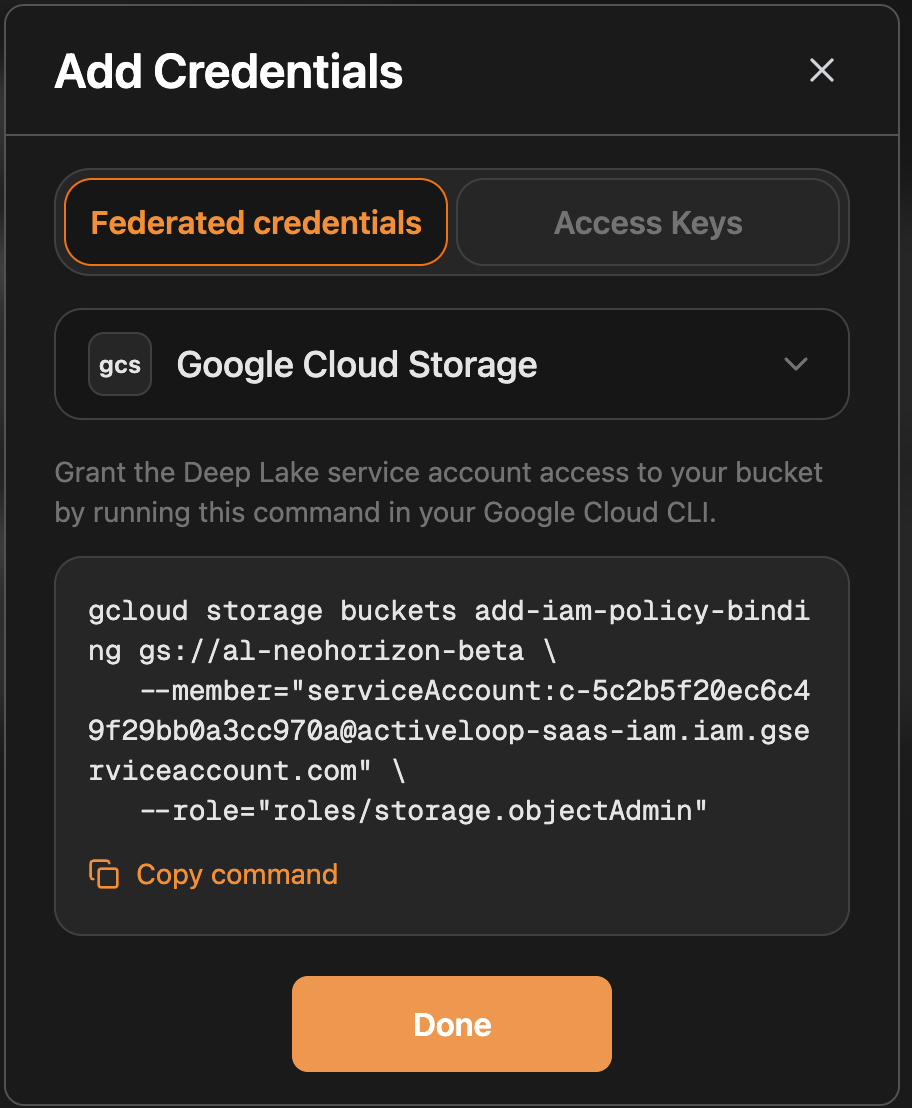
The command looks like this:
gcloud storage buckets add-iam-policy-binding gs://my-deeplake-bucket \
  --member="serviceAccount:c-<id>@activeloop-saas-iam.iam.gserviceaccount.com" \
  --role="roles/storage.objectAdmin"
GCP Console equivalent: Cloud Storage → your bucket → Permissions → Grant access. Paste the service-account email shown in the wizard, select Storage Object Admin, and save.
Once the binding is in place, click Done in the wizard.
What this grant allows: Deeplake's backend, authenticated as this credential's WIF session, can call iamcredentials.googleapis.com:generateAccessToken and receive an OAuth token that acts as c-<id>@.... The token can read and write under your bucket, and nothing else. The grant is auditable in your project (it appears on the bucket's IAM policy) and revokable with gcloud storage buckets remove-iam-policy-binding. Deleting the Deeplake credential automatically deletes the per-credential service account on Deeplake's side.
B3. Verify the connection
Open any Deeplake workspace bound to this credential and run a CREATE TABLE / INSERT round-trip (see Verify the connection below). If the bucket binding from B2 is missing or scoped to the wrong bucket, the error is:
Re-run the add-iam-policy-binding from B2. Common causes are a typo in the service-account email or the binding being applied to the wrong bucket.
Use the credential
Once the credential is verified, there are three ways to use it.
Set as org default (optional)
Toggle Set as org default on the success screen, or set it later from the credential list. Every workspace in the organization without its own credential link will use this one.
The resolution order is workspace credential, then org default, then environment default. Workspace-level links take precedence.
How credentials link to new workspaces
The workspace-creation wizard handles credential linking automatically:
- One verified credential in the org: that credential is linked to the new workspace automatically.
- Multiple verified credentials: the wizard prompts you to pick one. The selection is recorded as a per-workspace link.
- No credentials yet: the workspace falls back to the org default, or to the environment default.
Once a workspace contains at least one table, its credential link is locked. Re-pointing storage at a different credential after data has been written would silently change where new bytes land while leaving existing data unreachable on the new prefix. The API returns 400 with a clear message and the UI hides the Change credential action.
Link to an existing workspace
If a workspace was created before the credential existed, link the credential explicitly from the workspace's Storage settings, or via the API:
curl -X PUT 'https://api-beta.deeplake.ai/workspaces/<workspace_id>/credential' \
  -H 'authorization: Bearer <TOKEN>' \
  -H 'x-activeloop-org-id: <ORG_ID>' \
  -H 'content-type: application/json' \
  --data-raw '{"credential_id":"<CRED_ID>"}'
Verify the connection
With the credential in verified state, create a test table from the SDK:
import deeplake

client = deeplake.Client(token="<your_api_token>", workspace_id="default")
client.query(
    'CREATE TABLE "smoke_test" ("id" BIGINT, "name" TEXT) USING deeplake',
    timeout=60,
)
client.query("INSERT INTO smoke_test VALUES (1, 'hello'), (2, 'world')", timeout=60)
print(client.query("SELECT * FROM smoke_test"))
# [{'id': 1, 'name': 'hello'}, {'id': 2, 'name': 'world'}]
If the round-trip succeeds, the credential is fully working. Objects land in your bucket under <base_path>/<org_id>/<workspace_id>/smoke_test/. They are browsable in the GCP Console under Cloud Storage → your bucket.
Troubleshooting
Path A: "Invalid JSON" or "Missing required field"
The pasted JSON is not a valid service-account key. The most common causes are pasting a partial file, or pasting a user credential JSON (from gcloud auth application-default login) instead of a service-account key.
Re-run gcloud iam service-accounts keys create (step A2) and paste the entire generated file. A valid service-account key has these top-level fields: type: "service_account", project_id, private_key_id, private_key, client_email, and several others.
Path A: "GCS service account email has an invalid format"
The email field in the wizard, or the client_email field in the JSON, does not match the expected pattern.
Use the full service-account email: NAME@PROJECT_ID.iam.gserviceaccount.com. Not a Google user account, not a group.
Path A or B: "Bucket not found" or "Access denied on bucket"
Either the bucket name in base_path is wrong, or the service account was not granted roles/storage.objectAdmin on it.
# Verify the bucket exists in your project.
gcloud storage buckets describe "gs://<BUCKET>"

# Verify the service account has the right role on the bucket.
gcloud storage buckets get-iam-policy "gs://<BUCKET>" \
  --format='value(bindings)' | grep "${SA_EMAIL}"
For Path A, SA_EMAIL is your service account from A1. For Path B, it is the c-<id>@... email returned by the wizard in B1. If the role binding is missing, re-run the add-iam-policy-binding from step A1 or B2.
Path A: "Failed to load Google Default Credentials"
This error from Path A indicates an internal Deeplake configuration issue. Contact support. Path A does not depend on operator ADC setup.
Path B: "gcs_impersonation_denied"
Step B2 was not run, was applied to the wrong bucket, or the role on the binding is insufficient (for example roles/storage.objectViewer when Deeplake needs to write).
gcloud storage buckets get-iam-policy "gs://${BUCKET_NAME}" \
  --format='value(bindings)' | grep "${SA_EMAIL}"
The output should show the per-credential service-account email bound to at least roles/storage.objectAdmin. If not, re-run the add-iam-policy-binding from B2.
Path B: "gcs_backend_wif_failed: GCS federated credentials are not configured on this deployment"
This is an operator-side issue, not a customer issue. The Deeplake deployment is missing one of the GCP configuration values: GCP_PROJECT_ID, GCP_WIF_AUDIENCE, GCP_BOOTSTRAP_SA_EMAIL, or GCP_SESSION_ROLE_ARN.
Contact the operator of your Deeplake deployment. The setup is one-time. Once done, all federated credentials in the deployment work without further per-customer action.
Path B: "Could not reach Google IAM to mint impersonation token"
Transient network issue between Deeplake's backend and *.googleapis.com. Retry. If it persists for more than a few minutes, contact support. There may be a regional outage.
Reference
State machine
draft (created)
  |
  +-- Service Account Key path:
  |     submit JSON -> verify token mint -> probe write -> verified
  |
  +-- Federated path:
        create cred -> backend provisions per-credential SA in Deeplake's
                       GCP project, binds to WIF, returns SA email ->
                       customer grants bucket access to that SA -> verified

verified
  |
  +-- generate access token on demand (every workspace storage call)
  |     Path A: OAuth from stored SA key
  |     Path B: impersonation via WIF + iamcredentials API
  |
  +-- delete credential -> cascade-unlink from workspaces;
                           per-credential SA deleted (Path B) -> deleted
Tokens are short-lived (1 hour) and minted on demand. There is no separate refresh step. pg_deeplake calls back to deeplake-api for a fresh token whenever the cached one approaches expiry.
API endpoints
All endpoints require Authorization: Bearer <api_token> and X-Activeloop-Org-Id: <org_id>.
| Step | Endpoint | Body |
|---|---|---|
| Create (Path A) | POST /organizations/{org}/credentials |
{"name":"...","storage_type":"gcs","base_path":"gs://...","creds":{<sa-key-json-fields>}} |
| Create (Path B) | POST /organizations/{org}/credentials |
{"name":"...","storage_type":"gcs_federated","base_path":"gs://..."} |
| Get state | GET /organizations/{org}/credentials/{id} |
(returns state, service_account_email for Path B, and last-error fields) |
| Set as org default | PUT /organizations/{org}/credential |
{"credential_id":"..."} |
| Link to workspace | PUT /workspaces/{ws_id}/credential |
{"credential_id":"..."} |
| Unlink from workspace | DELETE /workspaces/{ws_id}/credential |
(none) |
| Delete | DELETE /organizations/{org}/credentials/{id} |
(none) |
For Path B, the create response includes the service_account_email to grant bucket access to.
Data path after verification
SDK
  |  query / table write
  v
Deeplake API
  |  (issues a 1-hour OAuth token, scoped to cloud-platform,
  |   minted from your SA key (Path A) or via impersonation of the
  |   per-credential SA in Deeplake's project (Path B))
  v
pg_deeplake / indra (storage layer)
  |  HTTPS PUT/GET to storage.googleapis.com with OAuth token
  v
gs://<bucket>/<base_prefix>/<org_id>/<workspace_id>/<table_name>/<object>
Three properties of this flow:
- Objects land in your GCS bucket under
/<org_id>/<workspace_id>/<table_name>/. They are browsable in the GCP Console. - The OAuth token Deeplake issues is short-lived (1 hour) and scoped to a single service account. Even if leaked, it expires fast and can only access what the service account can access.
- What Deeplake stores at rest: in Path A, the service-account JSON key encrypted with envelope encryption (per-org KMS key wrapping a per-credential data key). In Path B, no secret. The per-credential service account lives in Deeplake's GCP project and is deleted automatically when the credential is removed.
Remove a credential
This:
- Removes the credential row from Deeplake's database immediately.
- Removes any workspace links pointing at it (those workspaces fall back to the org default or environment default).
- For Path A: asynchronously purges the encrypted JSON key on the Deeplake side.
- For Path B: asynchronously deletes the per-credential service account
c-<id>@...in Deeplake's GCP project.
Optional customer-side cleanup:
Path A: revoke the service-account key in your project
gcloud iam service-accounts keys list \
  --iam-account="${SA_EMAIL}"
gcloud iam service-accounts keys delete <KEY_ID> \
  --iam-account="${SA_EMAIL}"
Path A: delete the service account itself, if no longer used
Path B: revoke the bucket binding
The per-credential service account is deleted automatically when the credential is removed, so any IAM bindings referencing it become stale. If you want to remove the binding explicitly:
gcloud storage buckets remove-iam-policy-binding \
  "gs://${BUCKET_NAME}" \
  --member="serviceAccount:${SA_EMAIL}" \
  --role="roles/storage.objectAdmin"
Delete the data Deeplake wrote: it lives under <base_path>/<org_id>/... in your bucket.
Table contents are not deleted automatically. The data remains in your GCS bucket after the credential is removed.
Getting help
If the troubleshooting section does not resolve the issue:
- Note the request ID from any error message.
- Note the credential ID, visible in the wizard URL or the credential list.
- Contact Deeplake support with both.